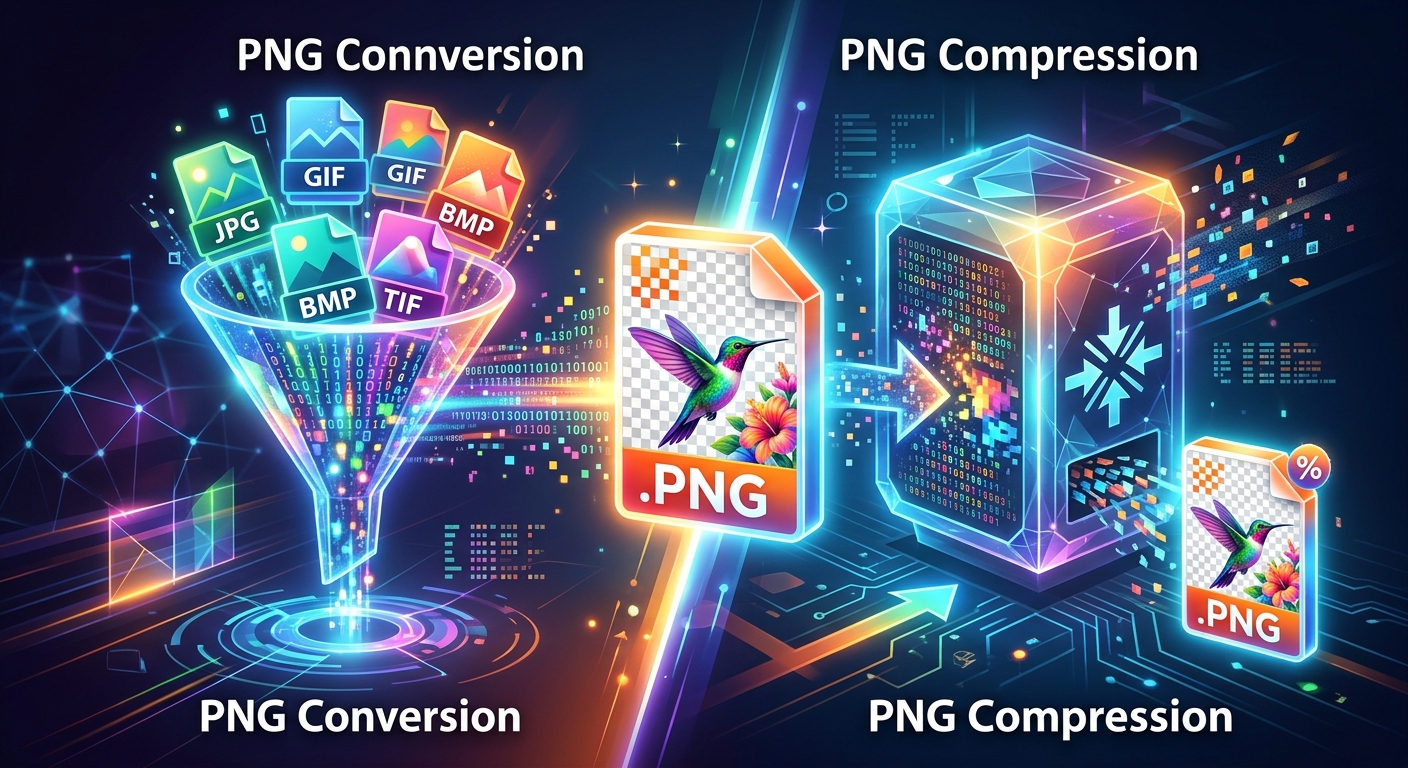
Your image looks perfect, but the upload form rejects it. The limit is 500 KB, and your PNG weighs 1.8 MB. Converting it might solve the problem. Compressing it might also work. Choosing the right operation starts with knowing what must survive: transparent edges, readable text, exact colors, or simply an acceptable preview. A useful workflow protects those details while removing bytes your destination does not need.
Keep the Pixels That Matter
Conversion changes an image’s format. Compression reduces its storage requirements. Start with the destination’s accepted formats, required dimensions, and byte limit. Keep an untouched original, resize only when appropriate, and try lossless PNG optimization before reducing colors. Check transparency, text, color, and actual file size after each meaningful change. A browser tool can handle occasional conversions, but private files require a verified processing policy. Accept the result only after testing the downloaded file where it will be used.
Separate Format Problems From File Size Problems
PNG conversion answers a compatibility question: what format does the destination need? PNG compression answers a storage question: can this PNG use fewer bytes? These operations can happen in one workflow, but they solve different problems.
If an upload accepts only PNG and your source is WebP, conversion is necessary. If it already accepts your PNG but rejects its size, start with dimensions and compression. Changing the filename from image.webp to image.png does not convert its contents. A decoder must read the source, then an encoder must write a valid PNG.
Expect some conversions to increase file size. Turning a JPEG photograph into PNG preserves the decoded photograph, including existing JPEG artifacts. It does not recover lost detail. The resulting PNG may be much larger because photographic texture is often expensive to store with lossless compression.
Choose PNG When Its Strengths Match the Image
PNG fits screenshots, interface graphics, diagrams, and artwork that needs transparent backgrounds. The PNG specification defines lossless raster storage with support for indexed color, grayscale, truecolor, and optional alpha transparency. Those features explain its usefulness for sharp graphics and compositing.
File size still depends on image content. A large area of one color can compress efficiently. Noise, grain, and detailed textures usually leave less room for savings. Two images with identical dimensions can therefore produce very different PNG sizes.
Format Choices for Common Delivery Needs
| Format | Useful Starting Point | Main Trade-Off |
|---|---|---|
| PNG | Screenshots, diagrams, and transparent graphics | Detailed photographs can produce large files. |
| JPEG | Photographs that need no transparency | Lossy encoding can damage text and sharp edges. |
| WebP | Web delivery where the destination accepts it | Check downstream editing, upload, and email requirements. |
Use this comparison to select a test candidate. Actual results depend on the encoder, quality settings, dimensions, and source content. Measure the exported files before choosing a delivery format.
Understand What PNG Compression Can Change
Lossless optimization can change filtering and encoding choices while preserving decoded pixel values. It can also remove selected metadata. A PNG that has already been optimized may shrink very little. Repeatedly processing it does not guarantee additional savings.
Some tools achieve larger reductions by reducing the number of colors. This process, called quantization, may turn a truecolor image into a palette image. The PNG encoding remains lossless for the resulting pixels, but the conversion to that smaller palette can discard information from the source.
That distinction matters for gradients, shadows, and brand artwork. A flat diagram may tolerate a smaller palette with no visible difference. A soft gradient may develop bands. Labels such as “optimized” or “compressed” do not establish pixel preservation. Check the settings and compare the output.
Metadata also deserves attention. Removing descriptive text can save space. Removing color information without a suitable conversion can change rendering across applications. Preserve an original with its metadata, and evaluate the delivery copy separately.
Resize Before Chasing Smaller Compression Gains
A 2400 by 1600 image contains 3.84 million pixels. At 1200 by 800, it contains 960,000 pixels, one quarter as many. The compressed file will not necessarily become one quarter of its former size, but reducing unnecessary dimensions often produces larger savings than adjusting compression alone.
Choose dimensions from actual use. An image displayed at 600 CSS pixels wide might need a 1200-pixel source for a display with a device pixel ratio of 2. It does not automatically need the full camera export. Responsive websites can provide multiple sizes so smaller screens avoid downloading the largest version.
For text-heavy screenshots, inspect readability after resizing. If labels become difficult to read, crop irrelevant surroundings or divide a long screenshot into focused images. Reducing dimensions until the upload succeeds is a poor trade if readers cannot understand the result.
Use Browser Conversion at the Compatibility Step
For occasional format changes, a free browser-based PNG converter fits naturally between receiving an incompatible source and preparing a delivery copy. It can be a convenient option when installing a separate application would add unnecessary work. Verify the available input formats, export controls, and processing policy before relying on it.
After conversion, check whether the PNG needs further compression. A successful format change establishes compatibility, but it does not establish an efficient file size. On a PNG compression workflow, the useful handoff is a valid PNG with the required dimensions and transparency intact.
Keep confidential material out of an unverified service. “Browser-based” describes the interface and does not prove that processing stays on your device. Check whether files are uploaded, how long they are retained, and whether the policy permits your intended use. For sensitive assets, use an approved local tool when those answers are unavailable.
Follow a Repeatable Conversion and Compression Sequence
Record the destination requirements. Note accepted formats, maximum bytes, required dimensions, and transparency needs. If a form uses an ambiguous KB label, leave headroom and test the actual upload.
Preserve the source. Store the original separately. Record its dimensions and file size so you can judge changes against a stable reference.
Prepare the image geometry. Crop unnecessary space and resize to the intended delivery dimensions. Confirm that text and fine lines remain readable.
Convert only when needed. Export to PNG if the destination requires it. Check orientation, color, and transparency before applying further optimization.
Try lossless optimization. Compare the resulting byte count with the original export. If it remains too large, test palette reduction or another accepted format.
Validate the downloaded output. Reopen the saved file, inspect vulnerable details, and test it in the destination application before replacing the delivery asset.
For a hypothetical 500,000-byte limit, a target below 450,000 bytes leaves useful headroom. That is a working target, not a universal requirement. Calculate savings as (original bytes - output bytes) / original bytes × 100. A reduction from 1,800,000 to 450,000 bytes saves 75%.
Inspect Transparency and Color Beyond the Preview
Transparent artwork needs testing against more than a checkerboard. Place the exported graphic over white, black, and its intended background. Pale fringes can disappear on white yet become obvious on a dark page. Fine hair, shadows, and antialiased text edges deserve close inspection.
Converting an opaque JPEG to PNG does not automatically remove its background. Converting a transparent image to JPEG requires flattening against a background color. Choose that color deliberately if JPEG is the delivery format.
View the downloaded result at its intended display size and at 100% zoom. Compare gradients, small lettering, and saturated colors with the source. For pixel-preserving workflows, decode both images and compare pixel values with consistent color handling. File hashes will differ after re-encoding even when decoded pixels match.
Also verify dimensions, file type, and successful decoding. The extension alone is insufficient. A technical validation step can inspect the PNG signature and check structural integrity. Neither a valid structure nor a clean preview guarantees that the image retained every feature you needed.
Check the Asset After Upload and Across a Batch
A local export can pass inspection while the published version changes. A content platform may resize, recompress, or convert uploaded images. Open the delivered asset and confirm which file the browser actually requests. Inspect its dimensions and transfer size rather than assuming the original upload is what visitors receive.
For page performance, reducing bytes helps address image transfer costs, but it does not guarantee a specific loading score. Image selection, caching, request timing, and layout also affect the experience. Give prominent images suitable dimensions and check the page under realistic network conditions.
For batches, test representative files before applying one setting everywhere. Include a text-heavy screenshot, transparent artwork, a gradient, and a detailed image. A palette setting that handles one category cleanly may damage another.
Keep a record of filenames, dimensions, before-and-after bytes, settings, and review status. Flag files that grow or miss the target. Preserve source-to-output mappings so an optimized image cannot accidentally replace an unrelated asset.
Deliver a Smaller File You Can Trust
A useful PNG workflow ends with a file that fits its destination and still does its job. Convert for compatibility. Resize for the intended display. Compress with a clear understanding of what can change. Then reopen the downloaded result and inspect the published version. Those checks turn a smaller byte count into a dependable delivery asset, while the preserved original keeps future edits straightforward.