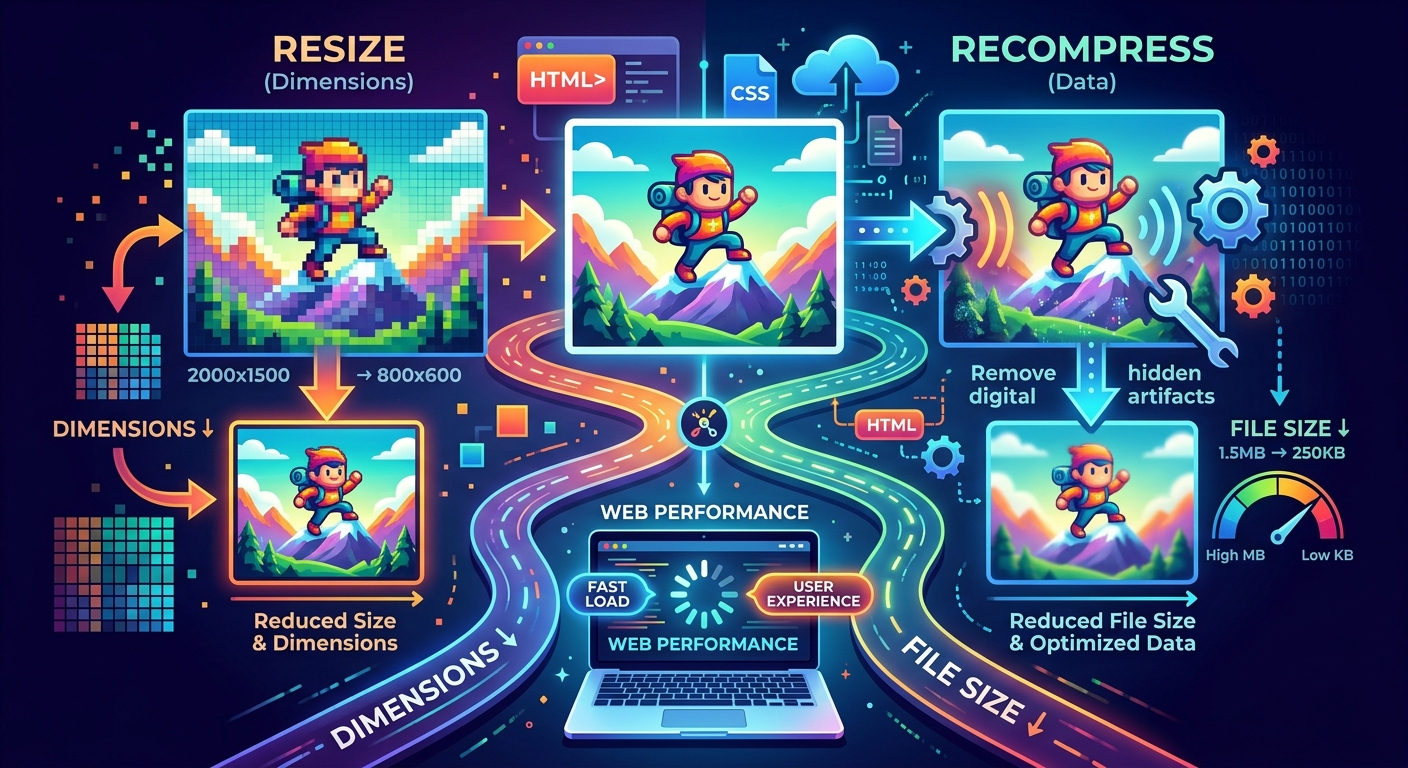
You uploaded a PNG and the file weight is embarrassing. Your first instinct is probably to cut the pixel dimensions. That might fix everything. Or it might fix nothing. Two very different problems can produce an oversized PNG, and applying the wrong solution wastes time and still leaves you with a sluggish page.
At a Glance: the right fix depends on what is making the file large, not simply how large it is.
- If pixel dimensions far exceed the display size, resizing removes the unnecessary data at the source.
- If the image is already sized for its display slot but the file weight is high, recompression can cut 30 to 70 percent without touching a single pixel.
- Testing one file before running a batch workflow saves you from committing to the wrong approach at scale.
Why a PNG Can Be Oversized in Two Completely Different Ways
PNG files carry two independent sources of weight. The first is pixel count. A 4000x3000 image holds more raw data than a 400x300 image, regardless of how efficiently it is encoded. The second is compression efficiency. Even a small image can balloon in file size if its compression settings are poor, if it was saved with unnecessary metadata, or if the original source contained complex color patterns that PNG's lossless algorithm struggled to encode tightly.
Those two sources require two different fixes. Shrinking pixel dimensions removes data permanently. Recompression reorganizes existing data more efficiently, without discarding any pixels.
The mistake most people make is defaulting to resizing because it produces a visible change. You can see a smaller image. You cannot see a more efficiently encoded one. But for display-ready images that are already sized correctly for their slot on the page, recompression can cut file size by 30 to 70 percent without altering a single pixel.
What Actually Happens Inside Each Approach
How Resizing Reduces File Weight
Resizing a PNG from 3000 pixels wide to 800 pixels wide discards roughly 93 percent of the pixel data. The encoder then has far less to work with, and the output file is smaller almost by definition. This is a destructive process. Once pixels are gone, they are gone. For images that are massively oversized relative to their display context, resizing is the correct first move.
The practical trigger is straightforward. If your image's pixel width is more than about 1.5 times the maximum width at which it will ever be displayed (including on high-density screens at 2x), the image is a strong candidate for resizing. A hero image displayed at a maximum of 1440 pixels wide on desktop does not need to be 5000 pixels wide. That is wasted data by any measure.
How Recompression Reduces File Weight
Recompression works differently. The pixel grid stays exactly the same. What changes is how the encoder packages that data. PNG uses a lossless compression algorithm called DEFLATE, and different encoders apply that algorithm with varying levels of aggressiveness. A PNG exported from Photoshop, for example, often carries far more overhead than the same image exported from a tool tuned specifically for compression efficiency.
Recompression strips unnecessary metadata, applies more aggressive DEFLATE passes, and sometimes reorganizes color data in ways that compress more tightly. All of that happens without degrading visible quality. The result is a file that looks pixel-identical to the original but takes up significantly less space on disk and over the wire.
File-Size Thresholds Worth Knowing
Concrete numbers help. These are targets used by many front-end teams, and while they are not hard rules, they give you a useful baseline for deciding which path to take.
For full-width hero images, most teams aim for under 200 KB. A hero PNG coming in at 1.2 MB almost certainly needs resizing first, then recompression. A hero PNG sitting at 350 KB with already-correct pixel dimensions is a recompression problem, full stop.
For product photos at typical e-commerce widths between 600 and 1200 pixels, a target of 80 to 150 KB is realistic with good compression. If you are seeing 400 KB on a correctly sized product image, recompression alone can usually bring you into an acceptable range.
For UI assets, icons, and interface graphics, PNG files should rarely exceed 20 to 30 KB. Small UI assets that are bloated are almost always a recompression issue, not a dimension issue. You do not resize a 24x24 icon to reduce its file weight.
Hero Images, Product Photos, and UI Assets Compared
Each image category behaves differently, and that behavior shapes which fix is appropriate.
Hero images tend to come from photographers or design tools and often arrive with print-quality dimensions. A DSLR raw converted to PNG can be 20 MB or more. These almost always need resizing first. After resizing to web-appropriate dimensions, recompression handles the second layer of savings and typically shaves another 20 to 40 percent off the already-reduced file.
Product photos are more mixed. Many e-commerce platforms resize uploads automatically, but the compression applied is often minimal. The image might already be the right size but encoded inefficiently. This is where recompression does the real work. Running a batch of product images through a well-tuned compressor, without touching the dimensions at all, can dramatically lower page weight across a catalog.
UI assets are almost never a dimension problem. A button background, a decorative pattern, or a logo exported from Figma or Sketch is typically already at the target size. If it is large, recompression is nearly always the answer. Resizing a logo to "fix" its file weight costs quality and rarely achieves the goal.
A Step-by-Step Process for Picking the Right Fix
Before running a batch operation across dozens of images, test your logic on a single file. The steps below walk through a reliable diagnostic process.
- Check pixel dimensions. Compare the image width against the maximum display width in your layout. If the image is more than 1.5 times wider than it ever needs to appear at 2x density, resizing comes first.
- If dimensions look correct, check the file size. Compare it against the thresholds for your image type. A 400 KB product photo with correct dimensions is over target and needs recompression.
- Run the image through a compression tool. Note the output size and the percentage reduction. A drop of 30 percent or more confirms that poor encoding was the primary culprit.
- If the drop is under 15 percent and the file is still too large, revisit dimensions or consider a format conversion to WebP or AVIF. PNG may not be the right format for this particular image at all.
- Once you have validated the approach on a single file, apply it to the full batch with confidence.
That fifth step matters more than it sounds. Running an untested compression workflow across hundreds of product images and finding that quality is unacceptable, or that savings were minimal, is an expensive mistake. Validate on one file, then scale.
Why Oversized Images Hurt More Than Just Load Speed
Images are the most common cause of poor Largest Contentful Paint scores. LCP measures how long it takes for the largest visible element on the page to render. On most marketing pages, that element is a hero image. On product pages, it is often the primary product photo. Oversized and poorly compressed images are among the most frequent contributors to failing Largest Contentful Paint scores, which directly affect search ranking and user experience.
A 1.2 MB hero image loaded over a mobile connection can take 2 to 4 seconds to render. Cutting that to 180 KB through resizing, recompression, or a combination of both can bring LCP under the 2.5-second threshold that search engines consider good. The approach that gets you there faster is the right one for your specific image.
This means the resize-or-recompress question is not just a storage question. It is a ranking and conversion question. Teams that treat image optimization as an afterthought often find it showing up as a concrete penalty in Core Web Vitals reports, with real consequences for organic traffic.
Testing Recompression Before You Commit to a Full Workflow
The best way to pressure-test recompression on a single file is to run it through a tool with no setup cost. If you are evaluating whether compression alone will get a correctly sized image to your target file weight, compress PNG online gives you an immediate quality-versus-size benchmark without installing anything or writing a single line of code. Drop the file in, see the output size, and inspect the result visually before touching your batch.
If the quality holds and the size drops to your target range, you have confirmed that recompression is the right fix. You are then ready to replicate that across the full batch using whichever build tool or script your workflow calls for. If the drop is minimal and the file is still over target, that tells you the real problem is dimensions, and you take a different path.
This single-file test step is especially useful for teams building an image optimization pipeline from scratch. You find out whether your approach is viable in under a minute, before you have configured any tools, written any scripts, or processed a single asset in bulk.
Making the Call Without Second-Guessing
The resize-or-recompress question has a clean answer once you check two things: pixel dimensions relative to display size, and current file weight relative to realistic targets for your image type. Images that are too large in both dimensions need resizing first and recompression second. Images that are correctly sized but overweight need recompression only. UI assets almost always fall into the recompression-only category. Hero images from raw camera sources almost always need resizing first.
The framework is not complex. What makes it feel complex is the instinct to treat every large PNG the same way. A 400 KB product photo and a 400 KB hero image look identical in a file browser, but one is correctly sized and the other might be four times larger than it ever needs to be. They need different treatments, and the wrong treatment applied at batch scale compounds the problem.
Check dimensions first. Compare against display-size targets. Test one file before touching the batch. That sequence gets you to the right answer faster than any rule applied blindly across an entire image library.